 9eed719a4d
Docker-DCO-1.1-Signed-off-by: James Turnbull <james@lovedthanlost.net> (github: jamtur01)
Upstream-commit: 62468a3eba4d115c16388fb4f67d6adfe4bbb0fc
Component: engine
7.4 KiB
page_title: Trusted Builds on Docker.io page_description: Docker.io Trusted Builds page_keywords: Docker, docker, registry, accounts, plans, Dockerfile, Docker.io, docs, documentation, trusted, builds, trusted builds
Trusted Builds on Docker.io
Trusted Builds
Trusted Builds is a special feature allowing you to specify a source
repository with a Dockerfile to be built by the
Docker.io build clusters. The system will
clone your repository and build the Dockerfile using the repository as
the context. The resulting image will then be uploaded to the registry
and marked as a Trusted Build.
Trusted Builds have a number of advantages. For example, users of your Trusted Build can be certain that the resulting image was built exactly how it claims to be.
Furthermore, the Dockerfile will be available to anyone browsing your repository
on the registry. Another advantage of the Trusted Builds feature is the automated
builds. This makes sure that your repository is always up to date.
Trusted builds are supported for both public and private repositories on both GitHub and BitBucket.
Setting up Trusted Builds with GitHub
In order to setup a Trusted Build, you need to first link your Docker.io account with a GitHub one. This will allow the registry to see your repositories.
Note: We currently request access for read and write since Docker.io needs to setup a GitHub service hook. Although nothing else is done with your account, this is how GitHub manages permissions, sorry!
Click on the Trusted Builds tab to get started and then select + Add New.
Select the GitHub service.
Then follow the instructions to authorize and link your GitHub account to Docker.io.
Creating a Trusted Build
You can create a Trusted Build
from any of your public or private GitHub repositories with a Dockerfile.
GitHub organizations
GitHub organizations appear once your membership to that organization is made public on GitHub. To verify, you can look at the members tab for your organization on GitHub.
GitHub service hooks
You can follow the below steps to configure the GitHub service hooks for your Trusted Build:
| Step | Screenshot | Description |
|---|---|---|
| 1. | 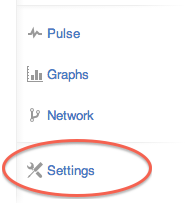 |
Login to Github.com, and visit your Repository page. Click on the repository "Settings" link. You will need admin rights to the repository in order to do this. So if you don't have admin rights, you will need to ask someone who does. |
| 2. | 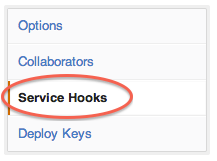 |
Click on the "Service Hooks" link |
| 3. | 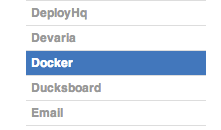 | Find the service hook labeled "Docker" and click on it. |
| 4. | 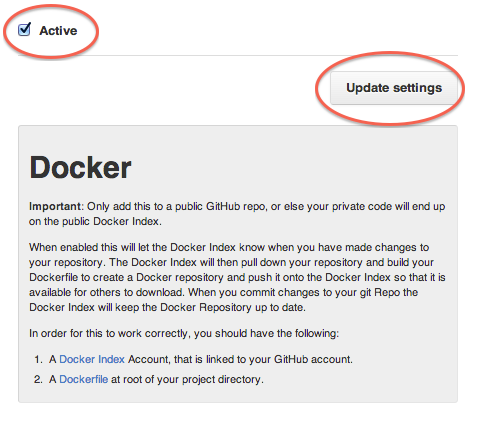 |
Click on the "Active" checkbox and then the "Update settings" button, to save changes. |
Setting up Trusted Builds with BitBucket
In order to setup a Trusted Build, you need to first link your Docker.io account with a BitBucket one. This will allow the registry to see your repositories.
Click on the Trusted Builds tab to get started and then select + Add New.
Select the BitBucket service.
Then follow the instructions to authorize and link your BitBucket account to Docker.io.
Creating a Trusted Build
You can create a Trusted
Build
from any of your public or private BitBucket repositories with a
Dockerfile.
The Dockerfile and Trusted Builds
During the build process, we copy the contents of your Dockerfile. We also
add it to the Docker.io for the Docker community
to see on the repository page.
README.md
If you have a README.md file in your repository, we will use that as the
repository's full description.
Warning: If you change the full description after a build, it will be rewritten the next time the Trusted Build has been built. To make changes, modify the README.md from the Git repository. We will look for a README.md in the same directory as your
Dockerfile.
Build triggers
If you need another way to trigger your Trusted Builds outside of GitHub or BitBucket, you can setup a build trigger. When you turn on the build trigger for a Trusted Build, it will give you a URL to which you can send POST requests. This will trigger the Trusted Build process, which is similar to GitHub web hooks.
Build Triggers are available under the Settings tab of each Trusted Build.
Note: You can only trigger one build at a time and no more than one every five minutes. If you have a build already pending, or if you already recently submitted a build request, those requests will be ignored. You can find the logs of last 10 triggers on the settings page to verify if everything is working correctly.
Webhooks
Also available for Trusted Builds are Webhooks. Webhooks can be called after a successful repository push is made.
The web hook call will generate a HTTP POST with the following JSON payload:
{
   "push_data":{
      "pushed_at":1385141110,
      "images":[
         "imagehash1",
         "imagehash2",
         "imagehash3"
      ],
      "pusher":"username"
   },
   "repository":{
      "status":"Active",
      "description":"my docker repo that does cool things",
      "is_trusted":false,
      "full_description":"This is my full description",
      "repo_url":"https://index.docker.io/u/username/reponame/",
      "owner":"username",
      "is_official":false,
      "is_private":false,
      "name":"reponame",
      "namespace":"username",
      "star_count":1,
      "comment_count":1,
      "date_created":1370174400,
      "dockerfile":"my full dockerfile is listed here",
      "repo_name":"username/reponame"
   }
}
Webhooks are available under the Settings tab of each Trusted Build.
Note: If you want to test your webhook out then we recommend using a tool like requestb.in.
Repository links
Repository links are a way to associate one Trusted Build with another. If one gets updated, linking system also triggers a build for the other Trusted Build. This makes it easy to keep your Trusted Builds up to date.
To add a link, go to the settings page of a Trusted Build and click on Repository Links. Then enter the name of the repository that you want have linked.
Warning: You can add more than one repository link, however, you should be very careful. Creating a two way relationship between Trusted Builds will cause a never ending build loop.